2016年11月1日星期二

2016 Shenzhen student App Inventor Contest


The 2nd Shenzhen Student Maker Festival was held at mid-October. App Inventor Contest is one of the activities. Although preparing time is less than a month, but we still received more than seventy projects that build by students from grade 3 to grade 12.

Many projects are very creative. Students have used a lot of App Inventor skills, such as API, Activity Starter, TTS, TinyWebDB, Bluetooth, extensions and so on. They also have learnt Computational Thinking arts by buiding these apps.


 Apps built by elementary school students:

  • Who gets the bomb?  - The player who guesses the random digit will lose.
 
  • Rescuing little animals - To control your phone not let the ball to touch the border otherwise the cute animal will die.
 

Apps built by middle school students:

  • Learning how to classify trash - Learn to classify trash by playing game.

  • Points 24 - An app to play 24 points. This app has entered the 2nd round of 2016 Google App Inventor contest for high school and middle school students in China!
Latest news: This app has gained top 10 and entered final contest! (updated on 15th, November)
 
  • Hanoi Tower - An app to play Hanoi Tower which has 7 levels. This app has entered the 2nd round of 2016 Google App Inventor contest for high school and middle school students in China!
 
  •  Rope skipping - An app to help you record the times you skip rope. 


Apps Built by high school students:

  •  Chattingfriend - An app to talk with a virtual friend. This app has entered the 2nd round of 2016 Google App Inventor contest for high school and middle school students in China!

  • SMS Assistant - An app can read aloud any SMS in your phone, can send message to a group contacts. The reading mode can access all SMS on your phone and read it aloud if you need. The driving mode can send SMS automatically.
 
  • Bluetooth game :Rock-Paper-Scissors
  

  • Learning words for kids - An app to teach kids learning words by scanning QRcode. 


  • My School Life - An app that can record your add, edit, delete your online memo, save your school timetable, and you can take a look of the street viewer of specific locations.
 
  • My School Life Assistant - An app that assembles several functions that can really make your school life convenient.


2016年9月4日星期日

Using App Inventor and Arduino UNO WIFI board to build a Smoke Alarm APP

The app will make an alarm when the gas sensor detects gas, after that the app sends a message to someone whose phone number is set in advance.

When the gas sensor detects gas, the LED light will be on.

When the gas sensor detects gas, the phone will buzzes and then send SMS to the specific people.


Here is the video:


Hardware:
Arduino UNO WIFI
Gas Sensor
Led

Software:
App Inventor

1. Arduino UNO WIFI:
Reference:
http://www.arduino.org/learning/getting-started/getting-started-with-arduino-uno-wifi 
http://www.arduino.org/learning/tutorials/boards-tutorials/webserver

Gas sensor: analog 0;
LED: Pin 13;


.ino file:
#include <Wire.h>
#include <ArduinoWiFi.h>
/*
on your borwser, you type http://<IP>/arduino/webserver/ or http://<hostname>.local/arduino/webserver/

http://www.arduino.org/learning/tutorials/webserver

*/
void setup() {
    Wifi.begin();
    Wifi.println("WebServer Server is up");
    pinMode(13, OUTPUT);
}
void loop() {
    
          if (analogRead(0) > 500)
       { 
          digitalWrite(13, HIGH);
       }
      else
       {
          digitalWrite(13, LOW);
       }       
    while(Wifi.available()){
      process(Wifi);
 
     }
  delay(50);
}
void process(WifiData client) {
  // read the command
  String command = client.readStringUntil('/');

  if (command == "webserver") {
    WebServer(client);
  }
}
void WebServer(WifiData client) {
          client.println("HTTP/1.1 200 OK");
          client.println("Content-Type: text/html");
          client.println("Connection: close"); 
          client.println("Refresh: 20");  // refresh the page automatically every  sec
          client.println();     
          client.println("<html>");
          client.println("<head> <title>UNO WIFI Example</title> </head>");
          client.print("<body>");
         
            int analogChannel = 0;
            int sensorReading = analogRead(analogChannel);
            client.print("analog input ");
            client.print(analogChannel);
            client.print(" is (");
            client.print(sensorReading);
            client.print(")");
            client.print("<br/>");
         

          client.print("</body>");
          client.println("</html>");
          client.print(DELIMITER); // very important to end the communication !!!         
}

2. App Inventor:

User Interface:

Components:


Blocks:


2016年7月20日星期三

Any Component - Abstraction of Computational Thinking

In App Inventor, we cannot copy components. So if there are a bunch of components that have same properties, you need to set them one by one, that really makes you frustrated.  So we look for the similarities between the components, figure out what things are different, remove out differences, that calls abstraction in Computational Thinking. We can use AnyComponent to fulfill it. Here are two examples:

Xylophone:


UI:

Before set the width, Fontsize and FontBold:


We have 8 same buttons. Set width, FontSize and FontBold to the button's properties.


After the screen initialized:


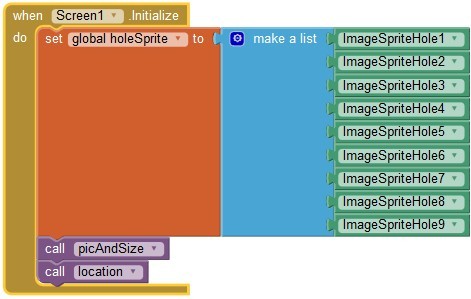
MoleMash:  


We have nine holes that has same size, same picture, and regular arrangement.


So we set it in blocks:


If you want to edit the properties of these components, you only do it at one time, one place. Cool, isn't it?


2016年6月22日星期三

2016 Google CS4HS Shenzhen


My three-day CS4HS workshop was held last week. More than 40 teachers came to have the training. Most of them are novices on App Inventor.

Two weeks before the workshop, I began to recruit participants.  Even though we don't offer credits in the training, but there are a lot of teachers applying for the training. A lot of participants are core teachers of Shenzhen, also include our discipline instructor and researcher of Shenzhen Education Bureau.
 
I have established an online course in advance. After recruiting, I let all participants encroll the course so they can begin to study immediately.


At the first day morning of training, a freshman of Shenzhen Institute of Information Technology showed to control a drone with mobile phone, the app was created with custom feature of App Inventor that developed by himself. Fantastic!

The next three days, I trained teachers on Computational Thinking, Setting Up App Inventor, How to open an App Inventor course in your own lab, Designer and Blocks Editor, Packaging and Sharing Apps,Lego and Arduino with App Inventor, aslo some interesting tutorials.


Teachers are making their own apps.


Everyone need to make a final project, they may collaborate with other teachers. At the last day afternoon, they presented their works : UI, Codes, Features, Improvement, Creative Ideas, all well done!


After training, they completed a survey about the workshop. The feedback is quite good. And they also gave me a lot of suggestions for improving the workshop. I'm so appreciate of that.

In the future, I would make a connection with Shenzhen Education Bureau and let more teachers to take part in further training.


2016年5月17日星期二

Science Festival


The Science Temple
Every year we have two Disciplines Festival, the autumn term is Art Festival, the spring term is Science Festival. So this term is Science Festival. The junior and senior part of our school have different activities. In junior part one of the activities of the Science Festival is a "Science Temple", a gathering of all students to take part in a lot of interesting games within half a day.


Of course our computer science discpline is one of the most attractive areas! The students lined up for playing games.

So happy to play the fruit piano!

Our robotic club design some interesting games to attract their classmates to play.

The spinwin: Using Arduino robot kits. When you press the green button, the spinwin begins to whirl, then you press red button, the spinwin whirls down slowly, finally stops in an area which indicates the game you should play: Tank, Elephant, Fruit Piano, Stamp and Try again.
   
 Touch the fruit to play a note, create your own song!
Lego Tank: You have only 60 seconds to push four items into a goal. If you push one item into a goal, you can get one stamp on your game card, and so on.
 
Lego Elephant: Make the elephant to roll up a candy stick then put it into the blue fence. If you succeed, you can get a stamp on your card.
Students use apps installed on the smart phone to control the LEGO Robots. The apps are written by our robotic club members, using App Inventor Platform. But the edition is a bit different from the official one. We cooperate with Shenzhen Institute of Information Technology, develope a local server edition, add LEGO EV3 and Arduino components in designer.
 Blocks of Tank:

So exciting to know that the new release of App Inventor coming soon will also add Components to suport LEGO EV3 Robots.
I'll ask my students to test it. They must love it!